'%3e%3cpath%20fill='%23F6F2EA'%20d='m99.936116%20183.18196-.0685-76.71586c.194534-.71157.550184-.92285.947534-1.00462l39.27271-.0848c1.61286.21986%202.40782%201.03806%203.32582%201.83243l22.34431%2022.756c1.5856%201.78151%203.20059%203.54685%203.10824%206.25122l.0228%2022.62661c-.0319.0671-.11277.0851-.25116.0457l-1.55958-.61751c-.24536-.12334-.18214-.22721-.20134-.35857l-.0656-22.92914c-.0521-1.20929-1.27954-1.9615-2.96817-2.53436l-14.13307-2.85401c-.55116-.18233-1.10799-.34387-1.43686-1.34125l-5.86941-20.37208c-.0842-.26939-.31672-.27913-.57081-.25116l.0913%2012.92297-.86762.15983-28.99677.0457c-.16216.0544-.1611.17556-.15982.29682l.0457%2012.23801c.0121.11096-.0314.2475.15949.27623l24.60832-.11767c.46744.16047.78052.4103.83953.80723l.0484%2010.65553c-.0716.32181-.26974.55924-.69422.64579l-23.81348.0484-.37133.38748.0161%2011.52734c.058.23617.21495.3821.53138.38264l28-.107c.45%200%20.72.25.9.64l1.6898%203.42449c.17736.48316-.0665.70554-.52691.79389-13.81094%203.33692-27.57045%206.39854-43.396774%2020.52372Z'/%3e%3cpath%20fill='%23FF6B57'%20d='m148.14409%20165.96788%201.47724%202.81725c-12.6967%205.02089-18.44234%2014.09804-18.39692%2026.69532l-31.385369.0323c-1.249322-.47067-.582535-1.15655-.290606-1.74363%2012.911025-20.59189%2038.573715-25.8919%2048.595655-27.80124Z'/%3e%3cpath%20fill='%2339B7A5'%20d='m148.68266%20157.63284%2015.54158%2029.64609c.67142.7669%201.3219%201.1358%201.87279-.38748l1.87279-12.98037%2012.94808-3.10785c1.43897-.59897.73091-1.62653%200-2.03424l-30.90102-12.16506c-.98968-.24089-1.54777-.0194-1.33422%201.02891Z'/%3e%3c/g%3e%3c/svg%3e)
Experiencer documentation
Connect an AI assistant
Add Experiencer as a connector in ChatGPT, Claude, or Grok so your assistant can fill in templates and tailor your saved résumés.
Cloud account: This workflow is available to signed-in Free and paid Pro accounts within tier limits.
Last reviewed:
Connect a chat assistant once, and it can work on the résumés saved in your Experiencer account. Ask it to move an existing résumé into a template, tailor a résumé to a job, or review your wording. It shows you a preview before anything is saved.
Connecting works on every plan, including the free account, within your plan’s usage limits. Pro templates need paid Experiencer Pro; the free templates work with any account.
Prefer a coding agent such as Codex or Claude Code? See Use Codex or Claude Code.
Before you start
- Create a free Experiencer account or log in.
- Use an assistant plan that allows custom connectors. Some ChatGPT and Claude plans do not.
- Have the connector address ready:
https://experiencer.app/mcp. Grok useshttps://experiencer.app/mcp?client=grok.
You can also copy the address in Experiencer: open a saved résumé and choose AI Review → Connect AI assistant.
Connect ChatGPT
- In ChatGPT, open Settings and go to the connectors (apps) settings.
- Choose the option to add a custom connector. Depending on your plan, you may need to turn on developer mode first.
- Name it Experiencer and paste
https://experiencer.app/mcpas the server address. - Save the connector, sign in to Experiencer when ChatGPT asks, and approve access for your account.
ChatGPT changes where this setting lives between plans and releases. If a label differs, look for “connectors”, “apps”, or “custom connector”.
Connect Claude
- In Claude, open Settings → Connectors.
- Choose Add → Add custom connector.
- Name it Experiencer and paste
https://experiencer.app/mcpinto the MCP URL field. - Add the connector, sign in to Experiencer, and approve access for your account.
Connect Grok
- In Grok, open Skills and Connectors and choose New Connector.
- Select the custom connector option and name it Experiencer.
- Paste
https://experiencer.app/mcp?client=grokand add the connector. - Sign in to Experiencer and approve the requested access.
Fill in a template from your résumé
- In Experiencer, choose Create a resume.
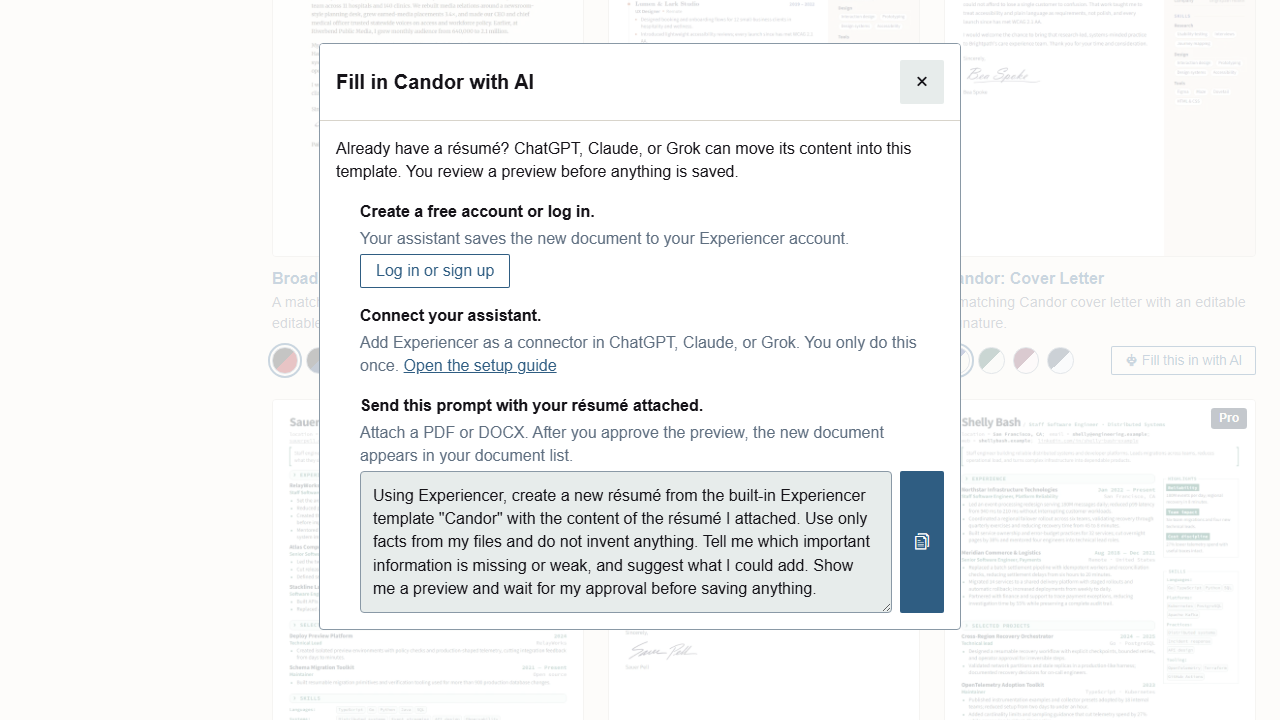
- On the template you like, choose Fill this in with AI and copy the prompt.
- In your assistant, attach your current résumé as a PDF or DOCX and paste the prompt.
- Review the preview. Ask for changes, or approve it when it looks right.
The new résumé then appears in your Experiencer document list, ready to edit and export.
For more requests to try, see Example prompts.
What the assistant can and cannot see
The assistant reads the latest saved version of the résumés and custom templates in your cloud account, plus the built-in templates your plan includes. It cannot see résumés stored only in this browser or edits you have not saved.
It previews changes without saving them. It saves only the exact proposal you approve, as a new revision or a new résumé. To stop access, remove the Experiencer connector in your assistant’s settings.
Next: Review with an AI assistant.