'%3e%3cpath%20fill='%23F6F2EA'%20d='m99.936116%20183.18196-.0685-76.71586c.194534-.71157.550184-.92285.947534-1.00462l39.27271-.0848c1.61286.21986%202.40782%201.03806%203.32582%201.83243l22.34431%2022.756c1.5856%201.78151%203.20059%203.54685%203.10824%206.25122l.0228%2022.62661c-.0319.0671-.11277.0851-.25116.0457l-1.55958-.61751c-.24536-.12334-.18214-.22721-.20134-.35857l-.0656-22.92914c-.0521-1.20929-1.27954-1.9615-2.96817-2.53436l-14.13307-2.85401c-.55116-.18233-1.10799-.34387-1.43686-1.34125l-5.86941-20.37208c-.0842-.26939-.31672-.27913-.57081-.25116l.0913%2012.92297-.86762.15983-28.99677.0457c-.16216.0544-.1611.17556-.15982.29682l.0457%2012.23801c.0121.11096-.0314.2475.15949.27623l24.60832-.11767c.46744.16047.78052.4103.83953.80723l.0484%2010.65553c-.0716.32181-.26974.55924-.69422.64579l-23.81348.0484-.37133.38748.0161%2011.52734c.058.23617.21495.3821.53138.38264l28-.107c.45%200%20.72.25.9.64l1.6898%203.42449c.17736.48316-.0665.70554-.52691.79389-13.81094%203.33692-27.57045%206.39854-43.396774%2020.52372Z'/%3e%3cpath%20fill='%23FF6B57'%20d='m148.14409%20165.96788%201.47724%202.81725c-12.6967%205.02089-18.44234%2014.09804-18.39692%2026.69532l-31.385369.0323c-1.249322-.47067-.582535-1.15655-.290606-1.74363%2012.911025-20.59189%2038.573715-25.8919%2048.595655-27.80124Z'/%3e%3cpath%20fill='%2339B7A5'%20d='m148.68266%20157.63284%2015.54158%2029.64609c.67142.7669%201.3219%201.1358%201.87279-.38748l1.87279-12.98037%2012.94808-3.10785c1.43897-.59897.73091-1.62653%200-2.03424l-30.90102-12.16506c-.98968-.24089-1.54777-.0194-1.33422%201.02891Z'/%3e%3c/g%3e%3c/svg%3e)
Experiencer documentation
Use Codex or Claude Code
Connect Codex, Claude Code, or your own scripts to Experiencer with a personal API key and the REST API.
Cloud account: This workflow is available to signed-in Free and paid Pro accounts within tier limits.
Last reviewed:
Coding agents such as Codex and Claude Code can edit your saved Experiencer résumés through the REST API. This suits a job search you run from a local folder or an Obsidian vault: the agent reads your notes, job descriptions, and application tracker there, and edits the résumé in Experiencer.
API access works on every plan, including the free account, within your plan’s usage limits. Your AI provider handles the conversation and its costs.
Prefer a chat assistant such as ChatGPT, Claude, or Grok? See Connect an AI assistant.
1. Generate your API key
- In Experiencer, open Settings → Connected tools.
- Under API access and agent editing, choose Generate API key.
- Copy the key now. It is shown only once.
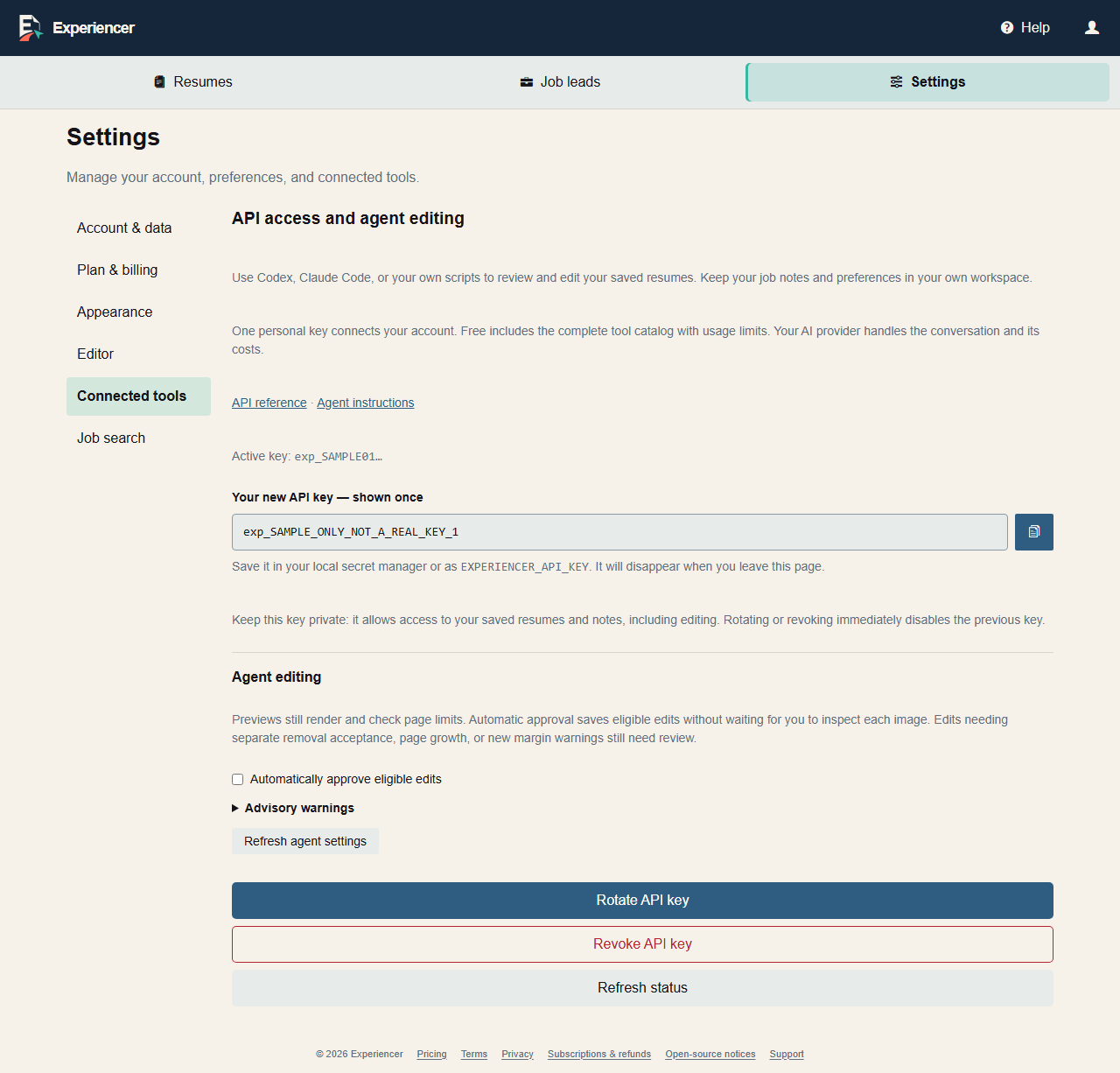
You have one active key. Rotate API key replaces it immediately, and Revoke API key turns it off.
2. Store the key in an environment variable
Save the key as EXPERIENCER_API_KEY so the agent can use it without seeing it in the conversation. Never paste the key into a prompt, a notes file, source control, or a URL.
On macOS or Linux, add this line to your shell profile, such as ~/.zshrc or ~/.bashrc:
export EXPERIENCER_API_KEY="paste-your-key-here"On Windows, run this once in PowerShell:
[Environment]::SetEnvironmentVariable('EXPERIENCER_API_KEY', 'paste-your-key-here', 'User')Open a new terminal afterward so the variable is loaded.
3. Point your agent at the instructions
The agent needs Experiencer’s agent instructions. They describe authentication, the preview-then-approve workflow, and the main endpoints. Add a short note to the instructions file your agent reads in your job-search folder:
## Experiencer
Before working with my résumés, download and follow
https://experiencer.app/api/agent/v1/instructions with curl.
Authenticate with the EXPERIENCER_API_KEY environment variable.
Never print the key.
Download the instructions with curl rather than a web-fetch tool: the /api/ paths are closed to crawlers, so many fetch tools are refused.
Claude Code
Put the note in CLAUDE.md in your job-search folder, then start Claude Code there. Claude Code inherits environment variables from the terminal you start it in. Approve the curl commands it asks to run.
Codex
Put the note in AGENTS.md in your job-search folder, then start Codex there. Codex usually needs two settings in ~/.codex/config.toml before it can call Experiencer:
# Let commands in the workspace sandbox reach experiencer.app.
[sandbox_workspace_write]
network_access = true

# Codex hides variables whose names contain KEY, SECRET, or TOKEN by default.
# Pass only the Experiencer key through.
[shell_environment_policy]
ignore_default_excludes = true
include_only = ["PATH", "HOME", "USERPROFILE", "SYSTEMROOT", "TEMP", "TMP", "EXPERIENCER_API_KEY"]
If you already have these sections, add the settings to them rather than repeating the headings.
4. Ask for a change
Start with a task such as:
Use my preferences and this job description to tailor my saved master résumé to two pages. Preview the changes and ask before saving. Then propose an update to my job tracker.
The agent creates a preview without saving. It shows you a preview link and the proposed changes, and saves only after you approve. Open the preview link to check the layout yourself.
For more requests, including converting a Word résumé, see Example prompts.
Reference for scripts
- API reference and OpenAPI schema.
- Send
Authorization: Bearer <your key>on every request, over HTTPS. - Start with
GET /api/agent/v1/resumes.GET /api/agent/v1/templateslists your custom templates and the built-in templates your plan includes. - Create a preview with
POST /api/agent/v1/proposals, then save the approved proposal through the documented revision or résumé resource.
REST and MCP use the same review, preview, and editing services, with the same ownership checks and the same approval step before saving. Your agent’s local files stay on your computer; Experiencer does not upload or host your vault.
Troubleshooting
- 401 Unauthorized: the agent cannot see the key. Open a new terminal, confirm
EXPERIENCER_API_KEYis set, and for Codex checkshell_environment_policy. - Network or connection errors in Codex: turn on
network_accessfor the workspace sandbox. - The instructions page is refused: download it with
curlinstead of a web-fetch tool. - 429 or 503: wait for the time in the
Retry-Afterheader, then retry.
Next: Review with an AI assistant.